You can send emails and text messages to your customers from Cloud POS. Your customers can also text you, even if you haven't contacted them from Cloud POS before (not available in all regions), and you can read and reply to their messages in Cloud POS.
In addition, you can add Notes to customer records. These are internal-only and do not send to customers.
You can send and view these communications from multiple areas of the Cloud POS platform. Click the button to view the section you need:
Receiving text messages from new customers
Communicating from the Point of Sale
Communicating from the Workshop Module
Communicating from the Cloud POS Back Office
Using the Message Hub
Receiving text messages from new customers
Please note that this feature is not currently available for retailers in Ireland, Spain, Switzerland or New Zealand. In these regions, text messages from phone numbers you haven't contacted from Cloud POS before cannot be received.
If a text message arrives from a phone number that's already on a customer record, it will be added to that customer's communications. If the number isn't on any customer record, a new customer record will be created automatically, so you can read the message and reply. The new customer will be named 'Inbound SMS', followed by their phone number.

Finding new Inbound SMS customers
To see all the customer records created from incoming text messages, go to 'Customers' > 'Customers' in the Back Office and search for 'Inbound SMS'. You can then open each record and add the customer's name and other details.
Communicating with a customer from the Point of Sale
Have you tried the Message Hub?
If you'd like to view your communications with all your customers from a single screen, you can use the Message Hub, instead of choosing an individual customer to communicate with.
First, set the customer you wish to communicate with.
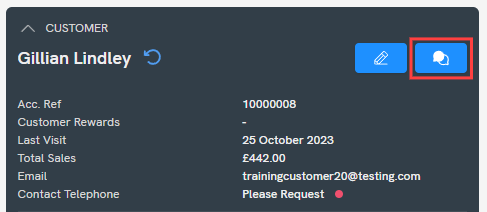
To access the Customer Communications panel, click this button in the transaction summary panel:
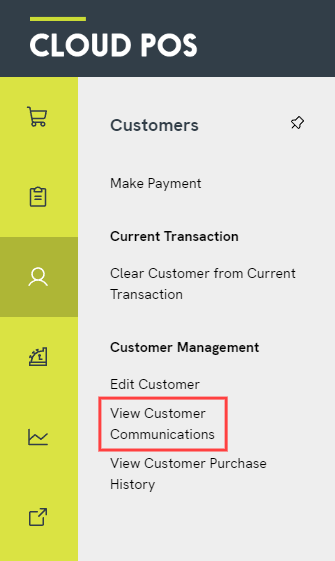
You can also access this panel by clicking into the Customers menu and then View Customer Communications:
Both options will open the Customer Communications panel.
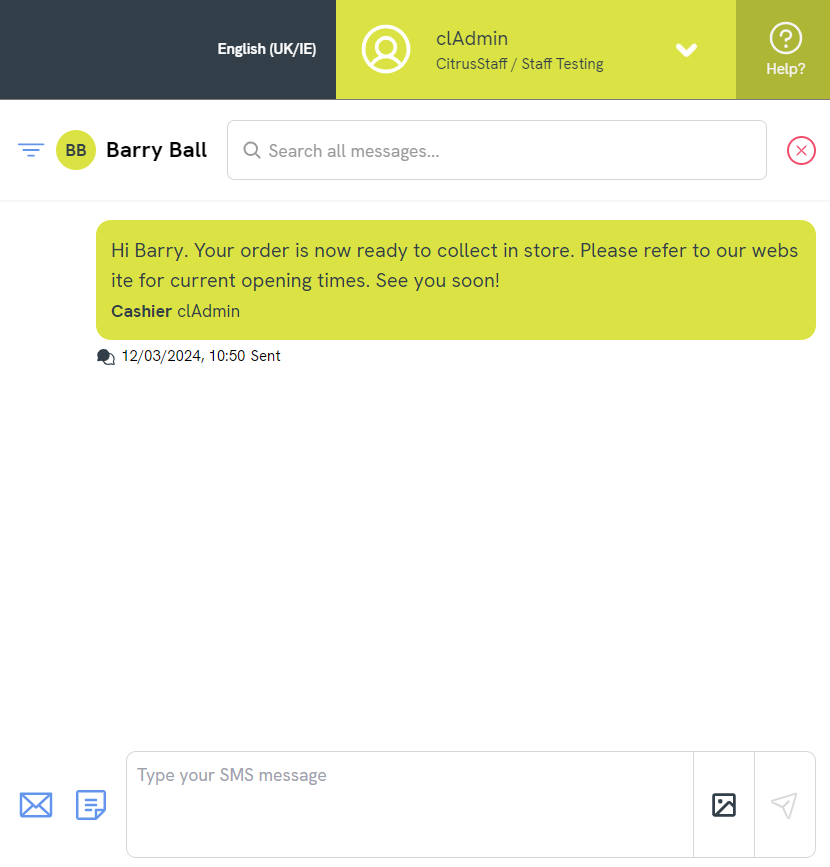
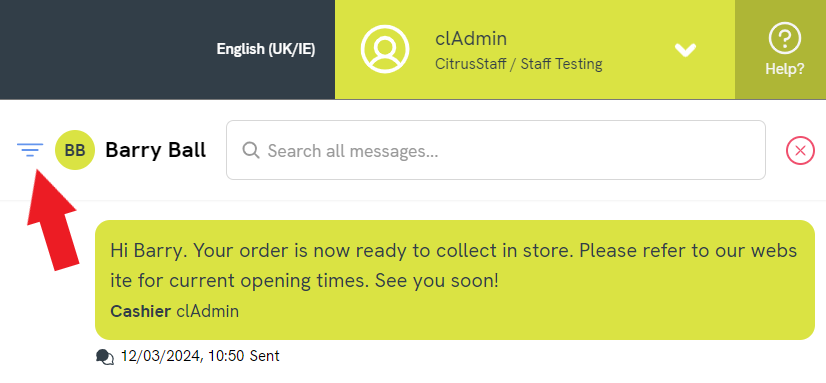
Here you can view all your previous correspondence with this customer via email and text. You can also view any internal Notes attached to their record. If you would like to filter for a specific communication type, e.g. email, use the Filter icon, shown here:
You can also use the Customer Communications panel to send a new communication to the customer.
a) To send a text message to the customer, you can simply begin typing at the bottom of the panel. Click the Send icon to send:

If you'd like to include an image with your message, click the image icon:

A window will open in which you can either add a link to an online image, or drag / upload image files from your own machine:
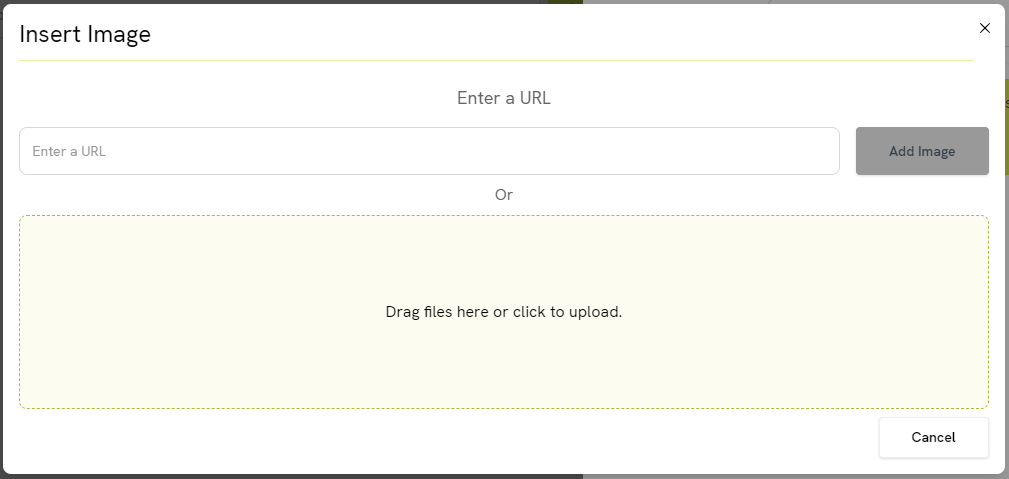
Supported file types are .jpe, .jpeg, .jpg, .gif, .png, and you can upload a maximum file size of 30MB per message.
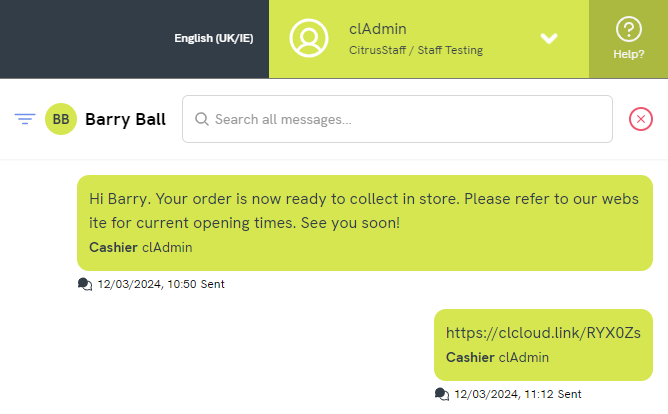
When you add your own image, this will create a link to the image itself which your customer can then open:
Viewing text messages from your customers
You can also view your customers' SMS/text messages in the Point of Sale. For full information on this feature, please refer to the following article:
How do I use the 2-way SMS/text functionality in Cloud POS?
The Message Hub will also show all of your customers' SMS/text messages in one place.
Texts from new customers will appear here too. See Receiving text messages from new customers.
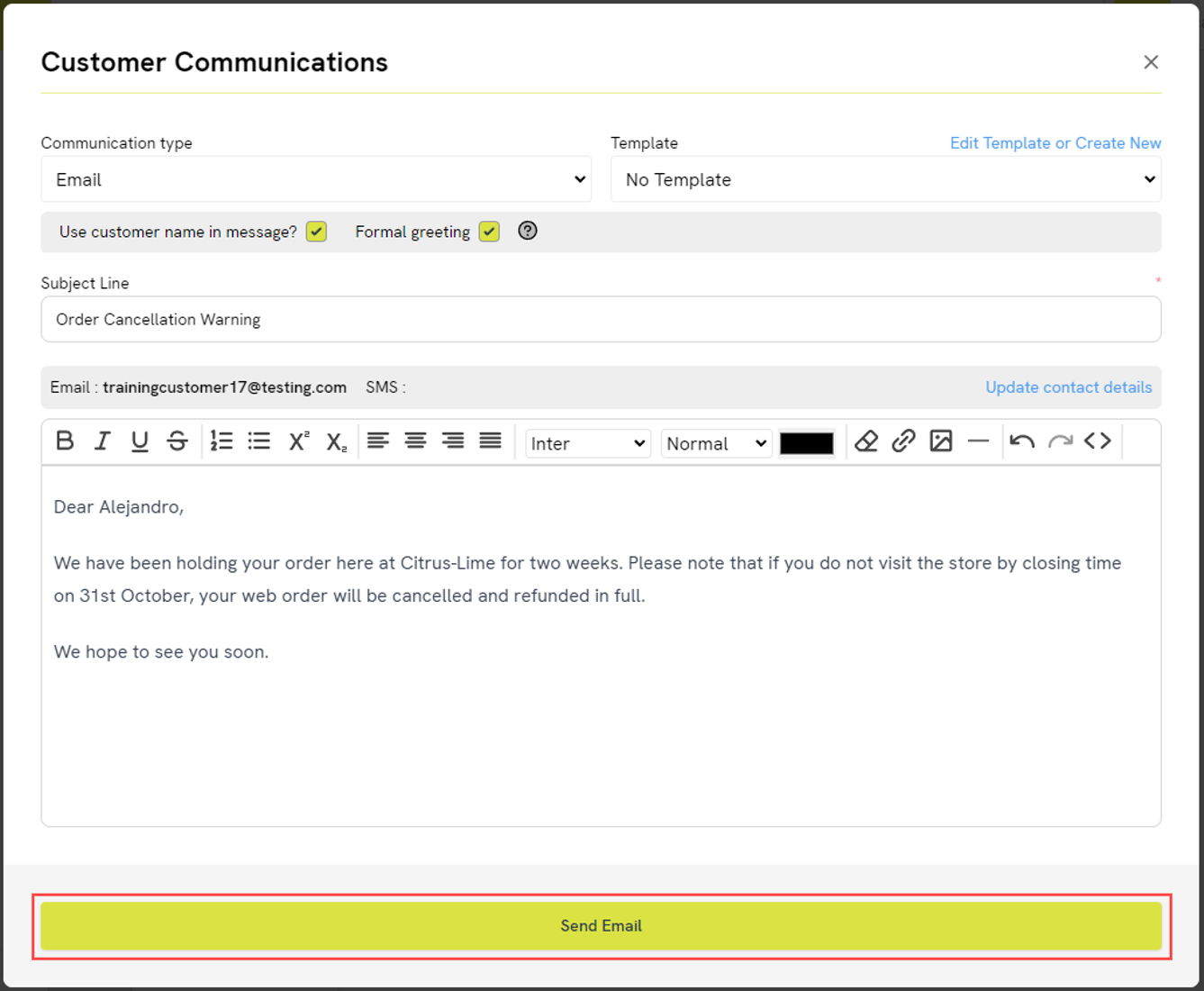
b) To send an email to the customer, first click the Email icon in the bottom left of the panel. This will open a new window.

You will see the Communication type has been set as 'Email'. (You can use this drop-down to change your selection, if needed.) You also have access to your Communication Templates on this screen. Please refer to this article for more guidance on creating and editing templates: Customer Communications Tool // How do I create Communication Templates?
The option to Use customer name in message? will be selected by default — you will see the customer's first name in the message window below. If you do not wish to begin your message in this way, simply untick the box. If you select Formal greeting, the greeting will change to use the customer's title and last name (if a title has been set on their record), or their first name with 'Dear John' instead of 'To John', for example.
You can enter a Subject Line for your email. If you have chosen a Communication Template, this will be pre-set, but you can make amendments if needed.
Use the message window at the bottom to type your communication. Again, this will be pre-set if you have selected a Communication Template, but you can make amendments if needed.
When you are ready to send, click Send Email. If you'd like to send another communication straight afterwards, such as a text message, tick Keep panel open before you click Send Email. This setting will be remembered for next time.
You will see a dialog box confirming that your message has been sent successfully:
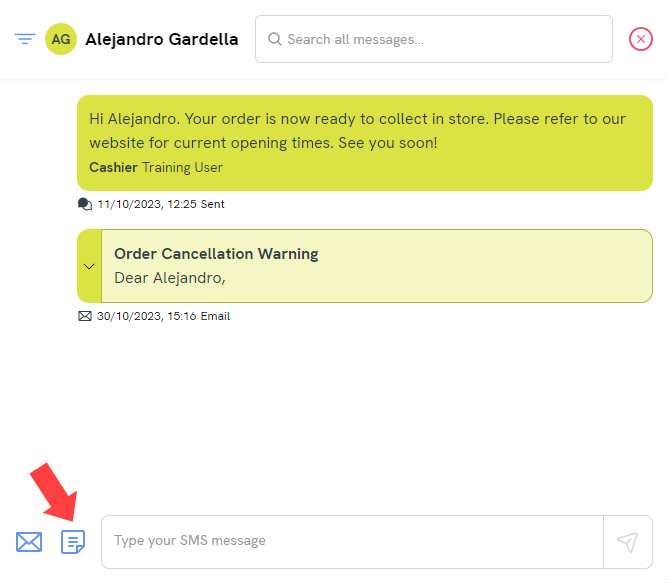
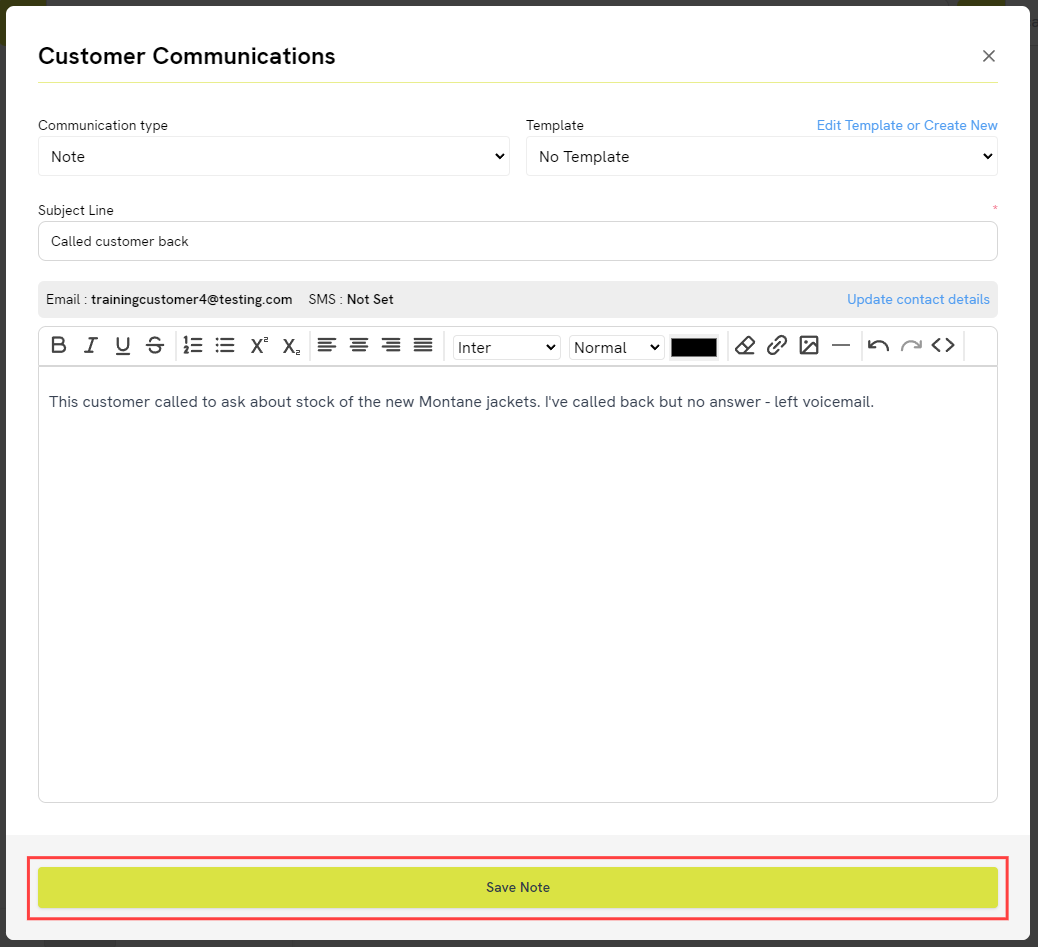
c) To add a Note to the customer record, click the Note icon in the bottom left of the panel. This will open a new window.
You will see the Communication type has been set as 'Note'. (You can use this drop-down to change your selection, if needed.) You also have access to your Communication Templates on this screen. Please refer to this article for more guidance on creating and editing templates: Customer Communications Tool // How do I create Communication Templates?
You can enter a Subject Line for your Note. If you have chosen a Communication Template, this will be pre-set, but you can make amendments if needed.
Use the message window at the bottom to type your Note. Again, this will be pre-set if you have selected a Communication Template, but you can make amendments if needed.
When you are ready to save, click Save Note. You will see a dialog box confirming that your Note has been saved successfully:
Notes for specific customer orders
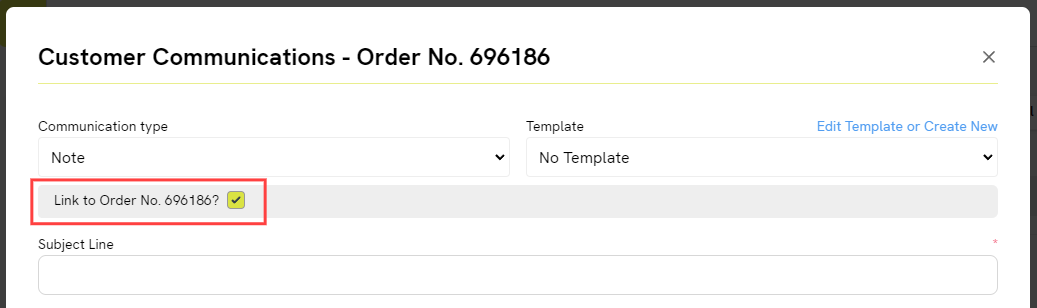
If you create and save a Note in this way, it won't be linked to a specific Special Order, Layaway, Workshop Job or Quote. If you would like to add the Note against a specific order, recall that order into the Point of Sale before opening the Customer Communications panel.
You will then see the option to link the Note with that order:
Communicating with a customer from the Back Office
Have you tried the Message Hub?
If you'd like to view your communications with all your customers from a single screen, you can use the Message Hub, instead of choosing an individual customer to communicate with.
There are a few places in the Back Office where you can communicate with customers, such as the Customer Orders page. This is useful for if you need to message a customer about a delay in delivering their order, for example.
You don't need to have an open order for a customer to communicate with them – you can message them at any time from their customer record in the Back Office.
1) In the Back Office menu, expand the Customers heading, then click on Customers:

2) You will be presented with your existing customer database. You can search the grid to locate the customer you wish to communicate with, then double click on that customer to open their record.

3) Scroll down to the Contact section, then choose if you want to Send Text or Send Email to open the Customer Communications window:

Communication preferences
You will note that there is a 'Contact Preference' next to the 'Send Text' and 'Send Email' buttons. This reflects the customer's preferred method of communication – it does not enforce the use of a particular communication type.
4) The Customer Communications panel will open on the left:

5) The Communication type drop-down will be pre-set depending on the button you clicked in the previous step (Email, SMS or Note). You can change your selection here, if needed. Email and SMS/text message are outbound communications. Notes are internal and will not be sent to the customer.

6) You can opt to use a Template by selecting one from the drop-down list provided.
The templates displayed in the drop-down list are relative to the Communication Type you have selected. For example, if you have selected Email as the Communication Type, then only Email Communication Templates will be present in the drop-down.

Please refer to this article for more guidance on creating and editing templates: Customer Communications Tool // How do I create Communication Templates?
7) The Subject Line describes the context of the communication you are composing to send or save. This is a required field. If you have opted to use a template, then the Subject Line will be populated for you, but you can make amendments if needed.

8) If you have selected a template, you can choose to automatically set the customer's name in the message, or you can decide to do this yourself manually.

This box will be ticked by default. This means that the customer's first name will be used automatically in the composed communication. Ticking this box helps to prevent mistakes in the spelling of a customer's name and speeds up the communication process when using a template. If you untick this box, then you are free to address the recipient in your own style.
9) You also have the option of using the default informal style of greeting (e.g. 'Hi John') or switching to a formal style (e.g. 'Dear John' or 'Dear Mr Brown').

10) You can now view and edit your communication. If you have selected a template, you will see the template body in the message field, prefixed according to the greeting settings you applied in the previous tab. If you have not chosen to use a template, the message field will be empty.

11) Once you are happy to proceed, click Send Email, Send SMS or Save Note (depending on your communication type). If you'd like to send or save another communication straight afterwards, tick Keep panel open first. This setting will be remembered for next time.
When you have successfully sent or saved a communication, a confirmation will be presented to confirm this:

A note on greetings and signatures
Please note
