The Cloud POS system provides some different options for configuring what information displays on barcode labels.
You are able to choose from the following options described below.
Standard
This shows the value that is set in the Price field of the item record:

NOTE: This option does not show the current selling price if this is different from the Price (i.e., if the item is on sale). If our example item was on sale at 2.00, this label would still print with the value in the Price field, 2.38:
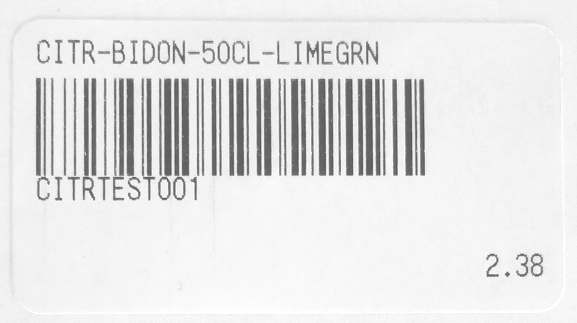
If you wish to show the current selling price on the label, choose the Was / Now option.
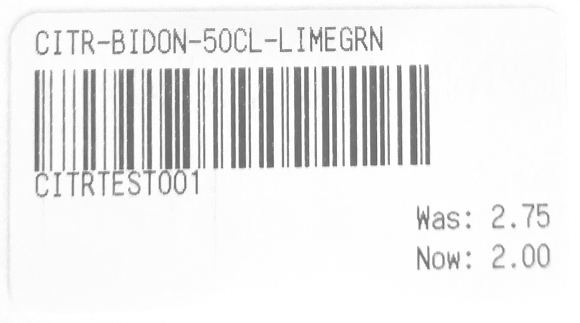
Was / Now
This will show the current selling price with the standard Price in a Was / Now format (where applicable);
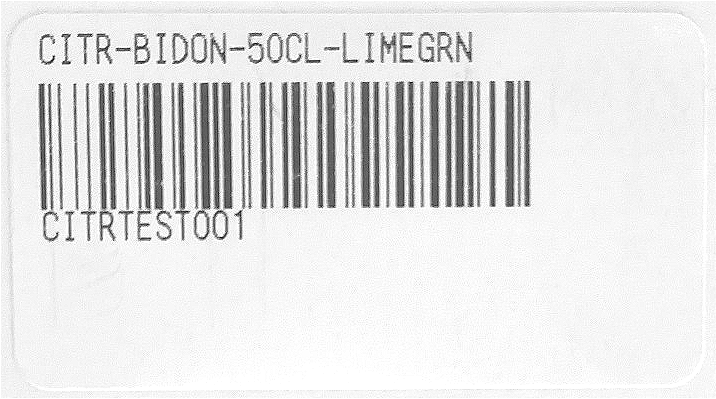
No Price
The selling price of the item will not show on the label at all:
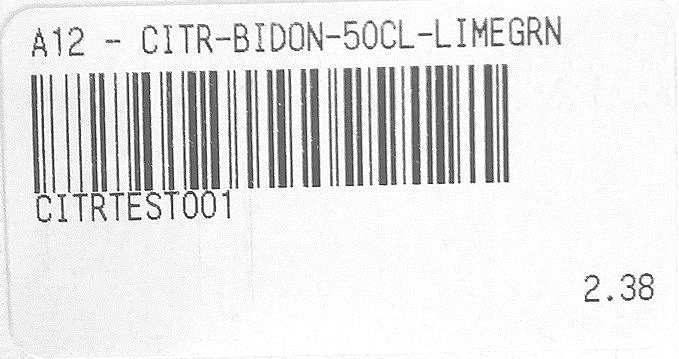
Include Bin Location
The Bin Location of the item will display at the beginning of the barcode description, at the top of the label.
Note: This option is only available for Cloud POS stores using Star Cloud barcode label printers.
Your retail system will be set by default to use Standard, to show one price only. This setting can be changed on a per label printer basis.
Changing your print settings
1) Within the Back Office main menu, select Setup and then Label Printers.
2) You will be presented with a list of the printers associated with your retail system. Choose the relevant printer from the list, then choose your preferred option from the Label Type dropdown.

3) Once you have made your selection, click on Save Pending Change. This change will be effective immediately.
To select an alternative label option, repeat these steps, choosing a different option from the Label Type dropdown menu.
